
How to Create Your TDCJ Online Visitation Scheduler Account (for Boyd Unit visitors)
Visiting someone at the Boyd Unit? You'll need to set up your own TDCJ Online Visitation Scheduler account first. The two biggest mistakes people make: picking an email they can't access later (it becomes permanent) and entering profile details in the wrong format. Here's how to get it right the first time.

TDCJ staff can't create an account for you - you have to do it yourself through the Online Visitation Scheduler. Before you start, choose your email carefully. Once an account is tied to an email address, that account can't be deleted and the email can't be changed. Use a throwaway or one you might lose access to, and you're setting yourself up for a long-term headache.
- Start account creation - In the TDCJ Online Visitation Scheduler, choose the option to create a new account.
- Enter a valid email address and submit - Use an email you can access right now (you’ll need it immediately).
- Watch for the registration email - After you submit, the system sends you an email with a 7-digit validation code and a link.
- Use the link and code to finish registration - Open the email, click the link, and follow the prompts using the 7-digit validation code to complete your account setup.
Warning: Choose an email address you plan to keep. After the account is created, it can’t be deleted and the email address can’t be changed.
You'll hit a Background Questionnaire during setup. Don't plan to come back and finish it later - every single question needs an answer before the system lets you continue. Leave anything blank and you'll be stuck until you go back and fill it in.
- ✓ Read each question and enter an answer before moving on
- ✓ Scroll through the full questionnaire to make sure nothing was missed
- ✓ Double-check that no required field is left blank before submitting
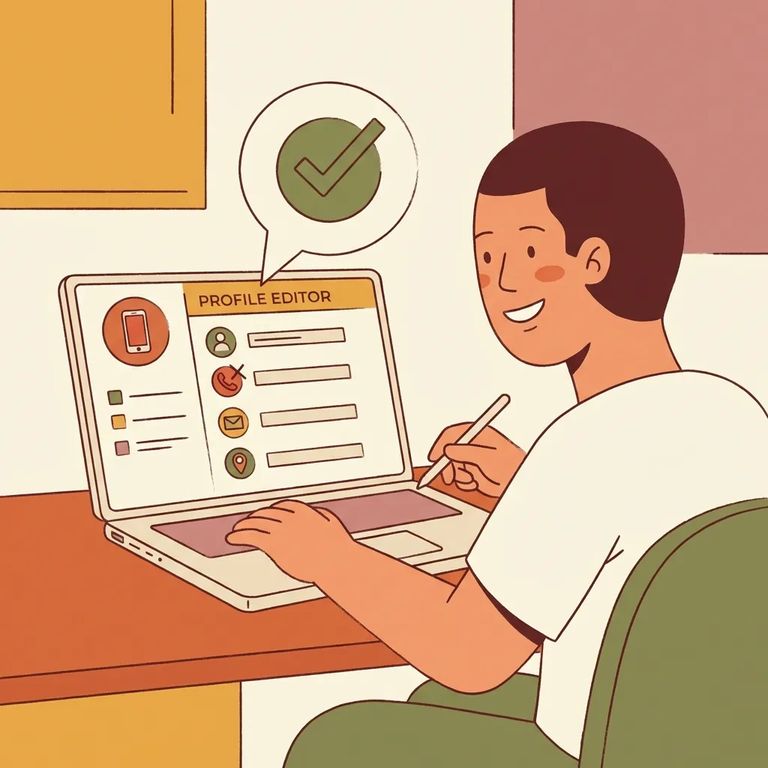
When you reach the Visitor Profile section, pay attention to how you enter your phone number. The scheduler requires a specific format: three digits, a space, three digits, a space, four digits (XXX XXX XXXX). Use dashes or any other style, and your profile may not save correctly.
- ✓ Correct: 214 555 0123
- ✓ Correct: 972 555 9876
- ✓ Incorrect: 214-555-0123
- ✓ Incorrect: (214) 555-0123
Adding the incarcerated person to your profile? You'll need their TDCJ or SID number, and it must be exactly 8 digits. Too short, too long, or including letters or symbols will prevent you from adding them successfully.
- ✓ Correct (8 digits): 01234567
- ✓ Correct (8 digits): 12345678
- ✓ Incorrect (too short): 1234567
- ✓ Incorrect (extra characters): 012345678
- ✓ Incorrect (letters/symbols): A1234567
Tips and Next Steps
- ✓ Use a permanent email address you won’t lose access to (it can’t be changed later)
- ✓ Enter your phone number with spaces only: XXX XXX XXXX (no dashes)
- ✓ Confirm the TDCJ/SID number is exactly 8 digits before you try to add the inmate
Once your account is set up and your profile details are saved, your next step is adding the inmate to your account. After that, follow the prompts to request the permissions you need. That's what moves you from "account created" to actually being able to schedule a visit.
Find an Inmate at Boyd Unit, TX
Search for a loved one and send messages and photos in minutes.
