
How to Schedule a Securus Video Visit with Someone at Joseph V. Conte Facility
Scheduling a Securus Video Connect visit is straightforward once your account and device are set up. The part that trips people up? Facility-specific rules. Confirm those first, then follow the standard Securus scheduling flow.

Before booking anything, confirm Joseph V. Conte Facility's video visitation rules. Facilities differ on who's eligible, whether you need to be on an approved visitor list, available days and times, and any fees or scheduling limits. Not sure about the details? Verify with the facility directly - otherwise you might end up with a cancelled appointment or a session you can't join.
Securus Video Connect lets you visit remotely instead of traveling to the facility. Friends and family can schedule and join visits, and the platform also supports attorneys and public officials. You can use the free Securus mobile app or access it from a computer through a web browser - helpful if you don't have the same device available every time.
Setup Account Devices
- ✓ Create a Securus account (or sign in if you already have one)
- ✓ Use a device you can rely on for the full visit: smartphone, tablet, or computer
- ✓ Make sure you have a steady internet connection (home Wi‑Fi is usually easier than public Wi‑Fi)
- ✓ Install the free Securus app on your phone/tablet, or plan to use the Securus web experience in a browser
- ✓ Know your login info ahead of time so you’re not resetting passwords at visit time
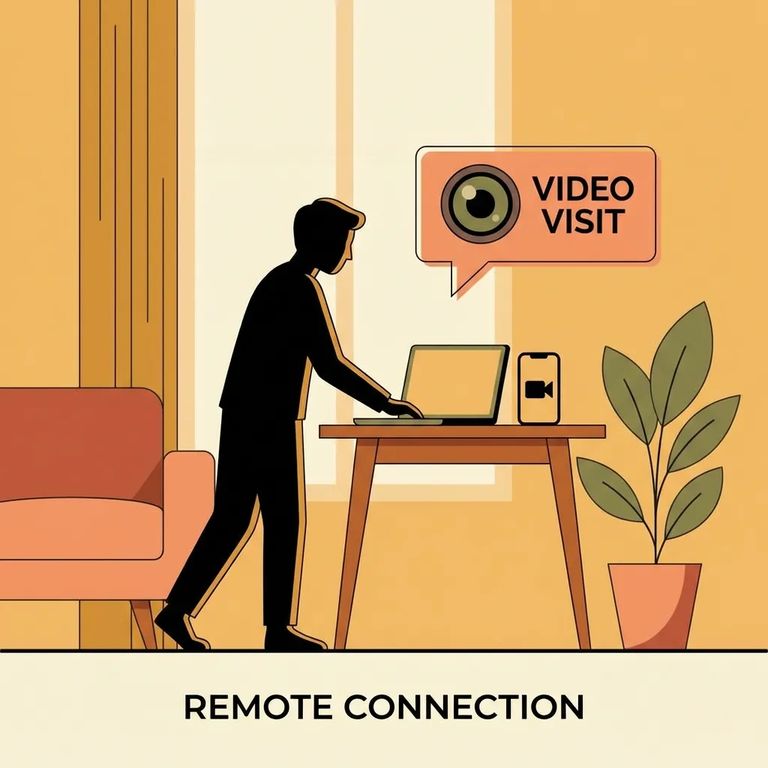
- Sign in to Securus - Use the app or a web browser and log into your account.
- Find the person you want to visit - Look them up in the system and select the correct facility/person if there are multiple matches.
- Choose video visitation (Video Connect) - Navigate to the video visit area so you can see scheduling options.
- Pick an available time and request/book it - Select an open slot and submit the request or booking, depending on what the system prompts you to do.
- Watch for confirmation details - Save the date/time and any instructions shown in your account so you’re ready when it’s time to join.
- Join at the scheduled time - Open the app (or sign in on the web) a few minutes early and follow the on-screen steps to start the session.

Troubleshooting
- ✓ Test your camera and microphone before the visit starts (both app and web users)
- ✓ Use the most stable internet you have access to; if video freezes, try moving closer to your router
- ✓ Close other apps/tabs that might be using your camera, microphone, or bandwidth
- ✓ Update the Securus app (or refresh/restart your browser) if things aren’t loading correctly
- ✓ Restart your device if your audio/video won’t connect - simple, but it fixes a lot
- ✓ If you’re using a computer, try a different browser if the video window doesn’t open
Tip: Do a quick camera/mic test a few minutes before your scheduled start time so you’re not troubleshooting while the clock is running.
Costs matter, especially if you're scheduling visits regularly. For some families, the price is worth it compared to hours of driving for a short in-person visit. That said, pricing and payment rules vary by facility - check what applies at Joseph V. Conte Facility before you schedule.
Final Checklist
- ✓ Confirm Joseph V. Conte Facility’s Securus video visitation rules (eligibility, approvals, scheduling windows, limits)
- ✓ Log into your Securus account and confirm you can access video visitation features
- ✓ Verify your device camera/microphone works and your internet connection is stable
- ✓ Double-check the appointment date/time and plan to join a few minutes early
- ✓ Have a payment method ready if the visit requires payment
- ✓ Choose a quiet, private place so you can hear and be heard during the session
Find an Inmate at Joseph V. Conte Facility
Search for a loved one and send messages and photos in minutes.
