
How to Schedule Your First Visit Using VisitMe (CDCR VisitMe)
Scheduling your first visit can feel like a lot to manage. VisitMe is CDCR's online tool for booking visit times and tracking your reservations.
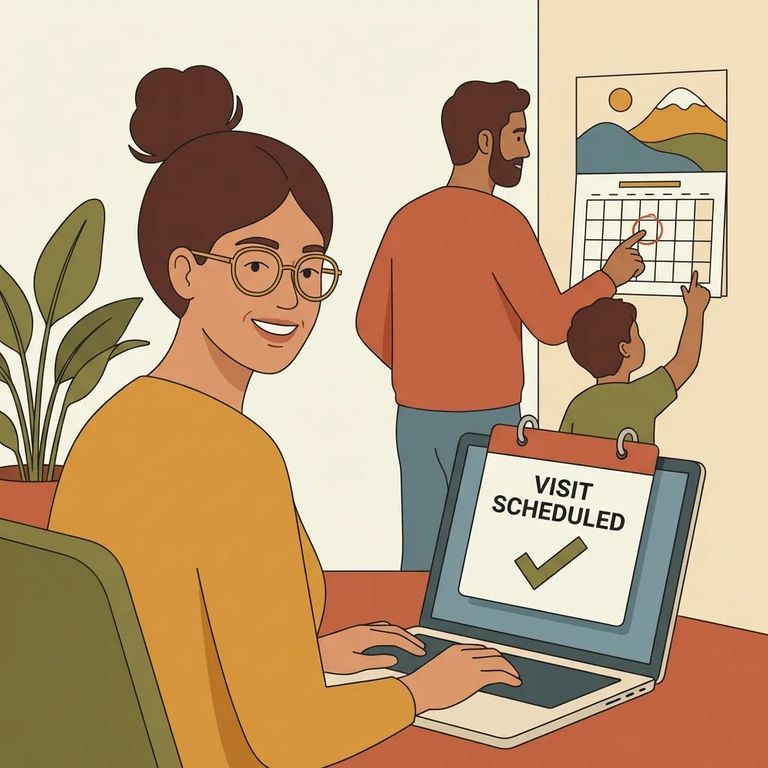
CDCR VisitMe is where you sign in, schedule visits, and manage upcoming appointments with an incarcerated person - all in one place. The login page also links to the Terms of Use and Privacy Policy. Worth a quick look so you know what information you're sharing.
The practical upside: instead of showing up and hoping for an opening, you reserve a time slot in advance. Pick your date, time, and location. Once you complete the booking, VisitMe confirms instantly - you'll know right away that you're set.
Tip: To confirm you're on the right site, look for
Before You Start
- ✓ Your basic contact info (name, email, phone)
- ✓ The incarcerated person’s identifying details you normally use for visitation paperwork (have them handy so you can enter information accurately)
- ✓ A reliable way to save your visit details after booking (notes app, calendar, or a printed copy)
- ✓ A plan for visit-day requirements (bring a valid photo ID if the facility requires it, and confirm any additional documentation directly with the facility)
- Go to the VisitMe login page - This is the page with sections for “Returning Users” and “New Users.”
- Select “CLAIM ACCOUNT” - Under “New Users,” choose the “CLAIM ACCOUNT” option to start creating/claiming your VisitMe access.
- Complete the account setup prompts - Follow the on-screen steps to finish registration so you can log in and schedule.
- Return to the login screen when finished - After your account is set up, you’ll use your Visitor ID or email and your password to sign in.
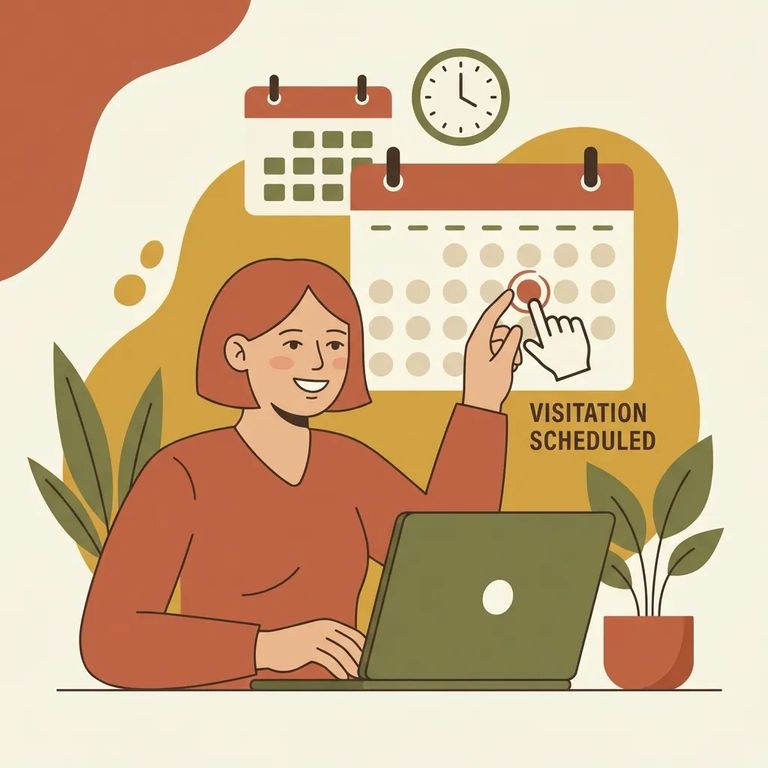
- Sign in to VisitMe - Log in so you can schedule and manage upcoming visits with your inmate.
- Start a new visit request - Look for the scheduling area (often labeled around “Schedule Visits”) and begin the booking flow.
- Choose your visit date - Pick the day that works for you from the available options.
- Choose your visit time - Select an open time slot that fits your schedule.
- Choose the location option - VisitMe lets you select the location option shown in the system.
- Submit and confirm - Once you finish the booking, VisitMe confirms the visit instantly, so you should see confirmation right away.
Good to know: Bookings confirm instantly. If you don't see a confirmation, don't assume it went through.
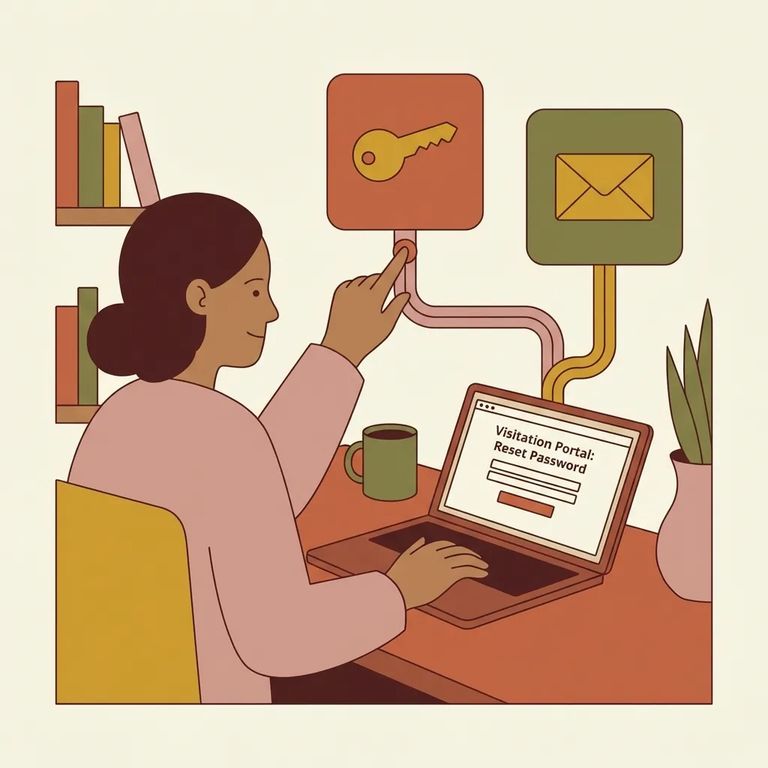
- Open the VisitMe login page - Use the same screen where you normally enter your Visitor ID/email and password.
- Click “Forgot your password?” - This link is built into the login page.
- Follow the prompts to reset - Complete the recovery steps so you can sign back in and continue scheduling.
If you're stuck: Try "Forgot your password?" first. Still having trouble? Use the "Contact" link on the VisitMe page for help.
VisitMe handles scheduling, but it won't answer every visit-day question. Before you go, confirm the facility's rules on required ID, dress code, and what you can bring. Check the facility's official information, and call directly if anything is unclear - especially for a first visit or if you're traveling far.
Quick Checklist Visit Day
- ✓ Your VisitMe visit confirmation details saved (screenshot, printout, or written down)
- ✓ A valid government-issued photo ID if the facility requires it
- ✓ Extra time to arrive early and get through check-in
- ✓ A quick re-check of facility rules (dress code and allowed items can change)
- ✓ A backup plan if you can’t access your account (know where “Forgot your password?” and “Contact” are on the login page)
If you’re visiting in a professional capacity, the VisitMe page also includes a “Professional Visitor” option.
Find an Inmate at Lancaster Prison, CA
Search for a loved one and send messages and photos in minutes.
