
Setting Up a TDCJ Online Visitation Scheduler Account: Step-by-Step (Tips to Avoid Common Mistakes)
Want to schedule a visit through the TDCJ Online Visitation Scheduler? The key to avoiding delays is getting your account set up right the first time—especially your email and phone number format.

You'll need to create your own account in the TDCJ Online Visitation Scheduler. Staff can't do this for you. Once your account exists, they may be able to help update certain details like your name or address - but that initial registration? That's on you.
Pick your email address carefully. This is the hardest part to fix later. Once an account is tied to an email address, that account can't be deleted - and the email can't be changed.
When you submit your email during registration, the system sends you an email with a 7-digit validation code and a link to finish setup. Click that link, enter the 7-digit key when prompted, then create your password. Skip the code step and you won't be able to complete registration.
Tip: Use an email address you control and can reliably access. The registration email contains your 7-digit code, and you can’t change the email later if you typed it wrong or used the wrong account.
Once you've set your password, you'll land on the Background Questionnaire. Answer every question - TDCJ won't let you move forward until all of them are complete.
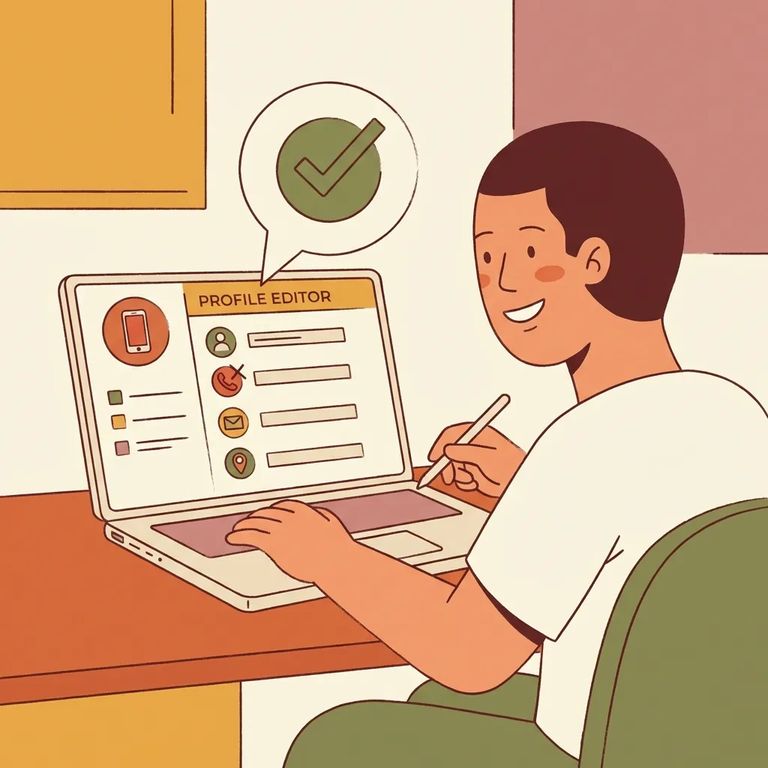
Fill out your visitor profile carefully. Your phone number needs to be entered as XXX XXX XXXX - spaces only, no dashes. If anything is incomplete, you'll get kicked back to fix it. Double-check all required fields before moving on.
- ✓ Use a valid email address you can access (and want permanently tied to the account)
- ✓ Enter the 7-digit validation code from the registration email to finish setup
- ✓ Answer every Background Questionnaire question (don’t leave any blank)
- ✓ Enter your phone number as XXX XXX XXXX (spaces, no dashes)
- ✓ Double-check that all required profile fields are filled out before submitting
- Search for the inmate - Look them up using their TDCJ/SID number.
- Choose your relationship - Use the relationship dropdown to select how the inmate is related to you.
- Request approval - Click Request Approval and confirm when prompted.
- Wait for verification - Once you submit, your relationship request is sent to the inmate’s unit of assignment, where TDCJ staff verify the visitor/inmate relationship.
Note: The unit handles relationship verification after you submit your request. But you still have to create your scheduler account first - staff can't do that part for you.
Find an Inmate at TDCJ Gib Lewis Unit
Search for a loved one and send messages and photos in minutes.
