
Setting Up Your First Video Visit with Someone at MCF Faribault (Step‑by‑Step)
Setting up your first video visit involves a handful of steps, but it's straightforward once you know what to expect. This walkthrough covers eligibility, payment, and tech setup—so your first visit goes smoothly.
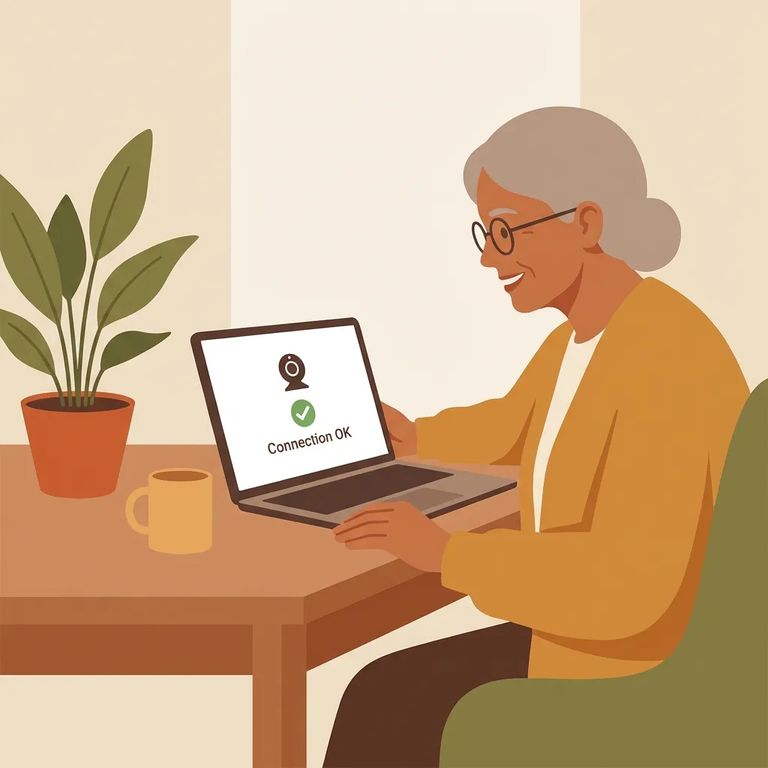
First things first: confirm you're eligible. You need to be on the incarcerated person's approved visitor list and have a JPay.com account. On the tech side, you'll need a PC with speakers, a microphone, and a webcam, plus a high-speed internet connection.
Note: Video visitation availability varies by facility. Confirm MCF Faribault is currently offering JPay video visits before you spend time on scheduling or payment setup.
To purchase a video visitation session, you'll need a JPay.com account with a Visa or MasterCard saved to it. New to JPay? Set up your login first - the scheduling steps assume you're already signed in.
What happens at checkout depends on whether you have a video visitation credit. No credit? JPay will ask you to select a saved card, enter the card validation code, and confirm payment. Have a credit? You'll skip the payment screen entirely.
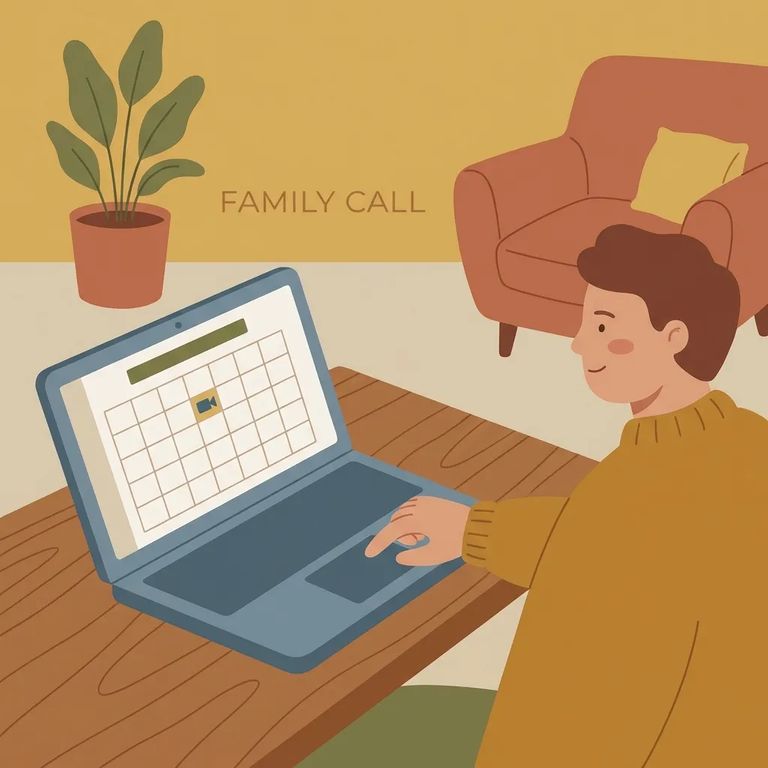
- Open Video Visitation in JPay - From the JPay home page, open the Navigation menu, click Video Visitation, then click Schedule New Visit.
- Pick a time and confirm - Choose your visit time from the Choose Time list, then continue through the prompts to confirm the booking.
Video visits run 30 minutes. Plan your conversation accordingly.
- Go to your Video Visits page - This is where your scheduled sessions show up.
- Delete a visit you can’t make - In the Video Visit box you want to remove, click Delete.
- Confirm the deletion - In the pop-up window, click Ok.
Tip: If you have a visitation credit, you won’t be asked for payment. If you don’t, be ready to select a saved card and enter the card validation code so you can complete the payment verification and fully confirm the visit.
Tech Checklist
- ✓ You’re on the approved visitor list
- ✓ You have a JPay.com account
- ✓ High-speed internet access
- ✓ A PC with speakers
- ✓ A microphone
- ✓ A webcam
The first time you use the service, the system will run a quick check to make sure your computer meets the requirements. This is normal - just build in a few extra minutes so you're not rushing when your session starts.
Tip: Close extra programs and browser tabs before you start. The fewer things competing for your internet connection and computer resources, the smoother your video and audio usually are.
Most payment confusion comes down to one thing: credits versus card payments. If you have a video visitation credit on your account, scheduling moves forward without asking for payment. No credit? You'll need to select a saved card and enter the validation code to finish booking.
Reminder: Make sure your video visitation is confirmed and approved by the facility before the appointment time. That one check can save you from logging in and finding out the session isn’t going to connect.
Find an Inmate at MCF Faribault, MN
Search for a loved one and send messages and photos in minutes.
