
Setting Up Your First JPay Video Visit (start to finish)
Your first JPay video visit is straightforward once you know the steps. This walkthrough covers eligibility, computer requirements, scheduling and payment, and how to join on visit day.
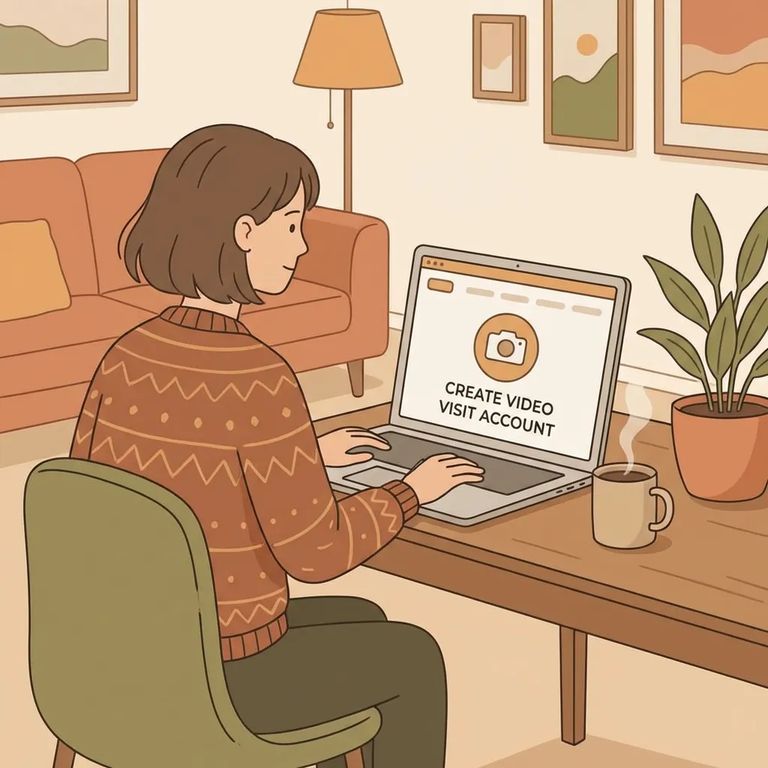
First things first: you must be on the incarcerated person's approved visitor list. If you're not approved yet, video visitation won't work for you. Handle the visitor approval process first, then come back to scheduling.
You'll also need a JPay account with a Visa or MasterCard saved on file for payment. Having your login and card ready before you start saves frustration - open time slots can fill up fast.
- ✓ High-speed Internet access
- ✓ A PC with speakers
- ✓ A microphone
- ✓ A webcam
Once logged in with the correct incarcerated person selected, go to the JPay home page and choose Video Visitation from the navigation menu. Click
You may need to review and accept the Video Visitation Terms of Use before picking a date and time. If the Terms of Use link appears, open it, read through, and continue. This is a normal part of the process.
- Start a new visit - From the JPay home page, go to Video Visitation and click “Schedule New Visit.”
- Choose the date - Select the day you want for the visit and continue.
- Choose the time - Pick an available time from the list and continue.
- Plan around the session length - Video Visits are charged in 30-minute sessions, so schedule for a full half-hour window.
At checkout, select a card already on file (Visa or MasterCard) and enter its CVV. Review the payment details on the verification screen, then confirm to finish booking.
If you have a video visitation credit, scheduling works the same way - but you'll skip the payment step entirely.
Before your first video visit, the system tests whether your computer meets the requirements. When the visit starts, a pop-up will ask permission to access your webcam and microphone. Click
- Log in and open Video Visitation - On the JPay home page, go to the navigation menu and click Video Visitation.
- Go to the Video Visits page - Find the scheduled visit in the Video Visit box.
- Start right at the appointment time - Both you and the incarcerated person should join at the appointed time; click “Start Visit Now!” to begin.
- Allow camera and microphone access - When the permission pop-up appears, click “Allow” so your webcam and microphone can be used.
Need to reschedule? Go to the Video Visits page and click
To cancel, go to the Video Visits page and click
Find an Inmate at MCF Shakopee, MN
Search for a loved one and send messages and photos in minutes.
