
Setting Up Your First Video Visit with MCF Shakopee: Step-by-Step
Your first video visit might seem complicated, but it's straightforward once you know the steps. Here's how to get set up, schedule your visit, and join on time—no last-minute scrambling required.

First things first: make sure you're on the incarcerated person's approved visitor list. Without approval, the system won't let you schedule or complete a video visit.
You’ll also need a JPay.com account. That account is what you’ll use to schedule the session and manage any payments or credits tied to your visits.
Note: Not every facility offers every JPay service. If something you expect to see isn’t showing up, double-check that video visitation is available for the facility you’re trying to use.
- Create your JPay.com account (or sign in) - you need a JPay account to be eligible for video visitation and to schedule a session.
- Stay logged in while you set things up - scheduling and joining the visit happens inside your account.
If you’re planning to pay for a session (instead of using credits), add your payment method ahead of time. JPay requires a Visa or MasterCard on file to purchase a video visitation session, and doing this early helps you avoid scrambling during scheduling.
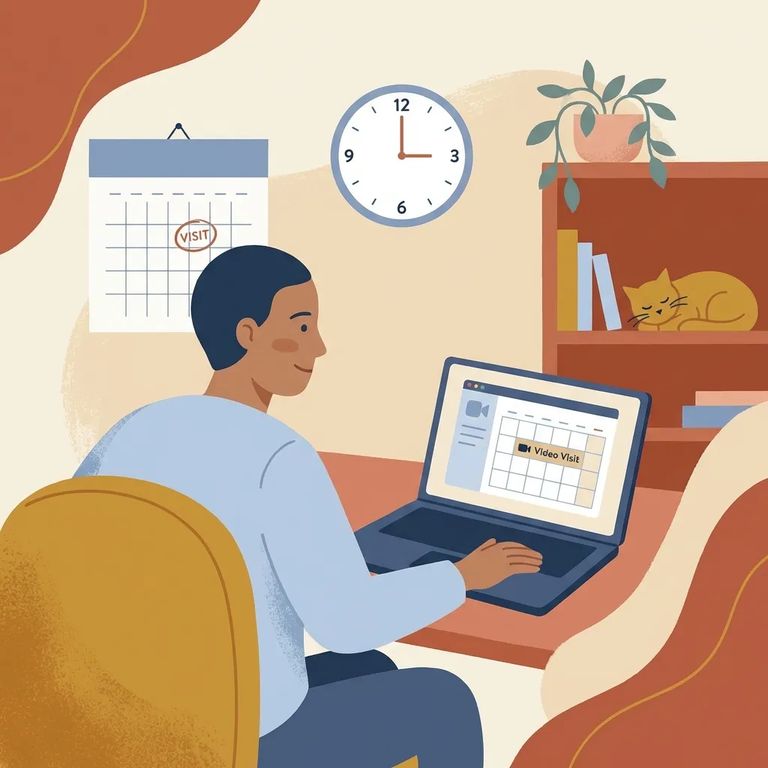
- Open the Navigation menu on the JPay home page - start from your account’s home screen.
- Click “Video Visitation” - this takes you into the video visit area.
- Click “Schedule New Visit” - this begins the scheduling flow for a new session.
If your account has multiple people listed, double-check that you're scheduling under the right person. Picking the wrong profile means your visit won't connect you with who you intended to see.
Heads up: If you’ve been given a video visitation credit, JPay won’t ask you for payment information when you schedule the visit.
- Go to “Video Visitation” from the JPay home page - use the Navigation menu.
- Find your scheduled session on the Video Visits page - look for the correct visit box.
- Click “Start Visit Now!” - select it for the visit you want to join.
When you start the visit, you'll likely see a pop-up asking for webcam and microphone access. Approve those permissions so your audio and video can connect. Then wait briefly - your session begins once the incarcerated person joins at the scheduled time.
Video visits are sold in 30-minute sessions. If you’re purchasing a session through JPay, you’ll need a Visa or MasterCard on file to complete the purchase.
If you have a video visitation credit, the checkout portion may look different. In that case, JPay won’t prompt you to enter payment information while you’re scheduling.
Warning: If you quit the call early, you’re still charged for the full 30-minute session.
Running low on time? You might see an option to extend the call. But don't rely on this - schedule the full time you need upfront so you're not rushing through your conversation.
Tech-checklist
- ✓ High-speed Internet access (strong, stable connection)
- ✓ Speakers
- ✓ Microphone
- ✓ Webcam (your PC must have all three for video visitation)
- ✓ Close bandwidth-heavy apps (streaming, downloads, video meetings) before you start
- ✓ Test your camera and microphone ahead of time so you’re not troubleshooting at the appointment time
- ✓ Join from a quiet spot where you won’t have to move your device mid-call
Find an Inmate at MCF Shakopee, MN
Search for a loved one and send messages and photos in minutes.
