
Setting Up Your First JPay Video Visit (how to schedule, join, and troubleshoot)
Setting up your first JPay video visit involves a few steps, but once you know where to click—and what to expect at checkout—it's pretty simple.
Before Start
- ✓ Create (or sign in to) your JPay.com account
- ✓ Make sure you’re on the incarcerated person’s approved visitor list
- ✓ Have a Visa or MasterCard available/on file (unless you’ve been given a video visitation credit)
- ✓ A reliable high-speed internet connection
- ✓ A device with a working webcam and microphone
- ✓ A quiet, well-lit space so you can be seen and heard clearly
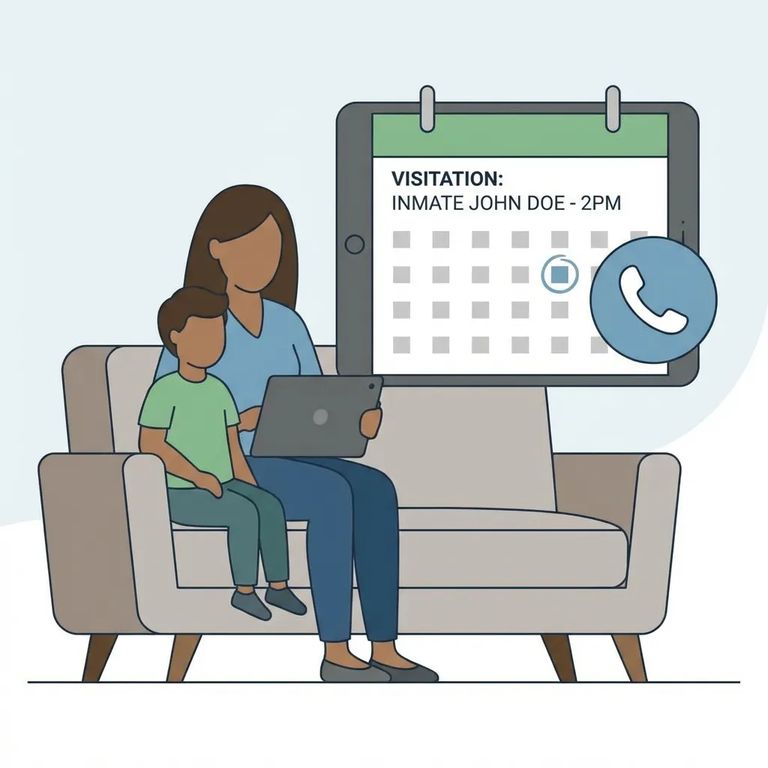
- Log in and pick the right person - On the JPay home page, make sure you’re signed in and that you’ve selected the correct inmate/offender from your list.
- Open the scheduling tool - In the JPay navigation menu, click Video Visitation, then click Schedule New Visit.
If your visit requires payment, JPay handles it during scheduling. You'll pick a card and enter the validation code before moving forward. Most people use a Visa or MasterCard saved to their JPay.com account. Got a video visitation credit? You won't see any payment prompts - just keep clicking through until the confirmation screen.
After scheduling, your visit shows up on the Video Visits page. Need to make changes? Head back there and hit Edit to adjust the time or Delete to cancel.
- Go to Video Visitation - On the JPay home page, use the navigation menu to click Video Visitation.
- Start the correct visit - On the Video Visits page, find the visit you’re about to attend and click Start Visit Now!
- Allow camera and microphone access - When a pop-up asks to take control of your webcam and microphone, click Allow so the visit can connect.
Tip: If your camera or mic doesn’t work right away, close other apps that might be using them and double-check your browser permissions before you try again.
JPay video visits are sold in 30-minute sessions. To purchase a session, you’ll need a JPay.com account and a Visa or MasterCard on file.
No partial refunds: If you leave a video visit early, you’re still charged for the full 30-minute session.
Troubleshoot Support
- ✓ Refresh the page and try Start Visit Now! again
- ✓ Close other programs/tabs that could be using your camera or microphone
- ✓ Check your browser’s site permissions and confirm camera/mic access is allowed
- ✓ Try a different browser or switch devices if the video won’t connect
- ✓ Restart your device if audio/video is frozen or missing
Still stuck after trying the quick fixes? Call JPay customer support at 800-574-5729.
Find an Inmate at MCF-Stillwater, MN
Search for a loved one and send messages and photos in minutes.
