
How to Set Up Securus Video Visits (guide for families with someone at Paul Rein Detention Facility)
Video visits save time and make staying connected easier—but setup goes smoother when you know the facility's rules upfront. Here's how to verify what Paul Rein Detention Facility allows and get Securus ready on your device.
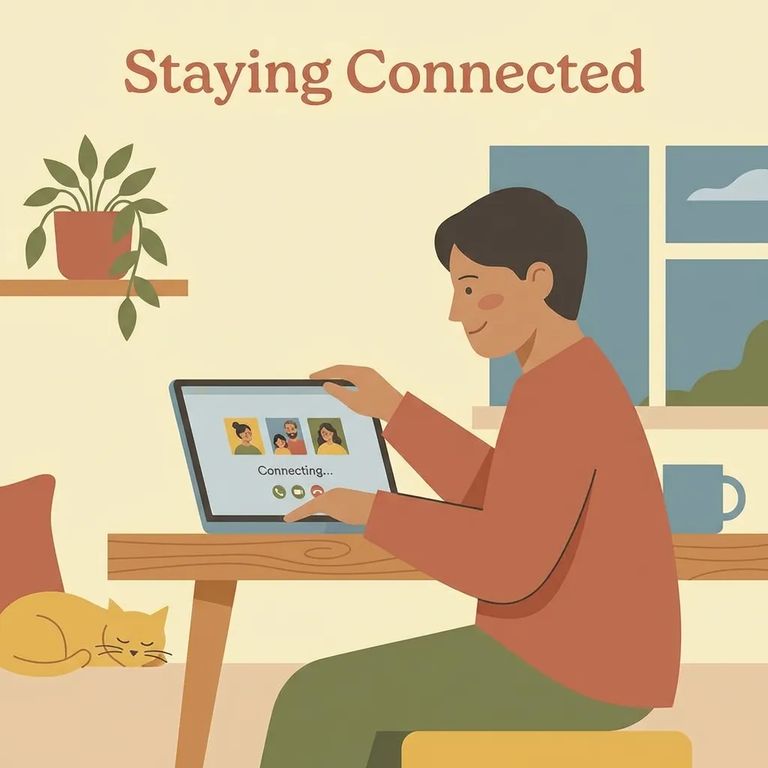
Before downloading anything or adding payment info, confirm that Paul Rein Detention Facility actually allows remote video visits - and that they use Securus. Policies vary by facility. The details that matter most (who can visit, how scheduling works, any fees) are set locally. A quick call or check of the facility's official info can save you from setting up the wrong service or hitting a surprise right before your scheduled visit.
- ✓ Do you offer remote video visits, and is Securus the provider?
- ✓ Do visitors need to be on an approved visitation list first?
- ✓ What are the video visit days/times, and do they vary by housing unit?
- ✓ How far in advance can I schedule, and are there limits on how many visits I can book?
- ✓ How long is each session, and can multiple family members join the same visit?
- ✓ What identification (if any) is required for remote visits?
- ✓ What are the fees (if any), and how are they paid?
- ✓ What are the rules for cancellations, no-shows, and refunds?
- ✓ Are messages, photos, eCards, or video clips available through Securus for this facility?
If Paul Rein uses Securus for video visits, you'll set things up through the Securus website or the free mobile app. Either way, you'll create an account with your name and email, then add a payment method if the facility charges for visits. Decide upfront which device you'll use - phone, tablet, or computer - so you're not scrambling with logins right before your first call.
- Choose web or app - Use the Securus website on a computer, or install the free Securus app on your phone/tablet.
- Create your profile - Enter your basic account details (like name and email) and set a strong password.
- Verify your account - Follow any verification prompts (such as confirming your email or phone) so your account is fully active.
- Add a payment method (if needed) - If visits or features require payment, add your card or preferred payment option inside your account.
- Find and link your loved one - Search for the incarcerated person and select the correct facility/profile so your account is ready for scheduling and messaging.
Securus video visits work on smartphones, tablets, or computers. For most families, the free Securus app on a phone or tablet is the easiest option - it's designed for mobile cameras and mics. A computer works too if you want a bigger screen. Just make sure you're using a supported browser and that camera/mic permissions are turned on.
- ✓ App: easier sign-in and setup on a phone/tablet
- ✓ App: notifications can help you remember upcoming visits
- ✓ Browser: larger screen on a laptop/desktop can feel more comfortable
- ✓ Browser: no app install needed if you’re using a shared computer
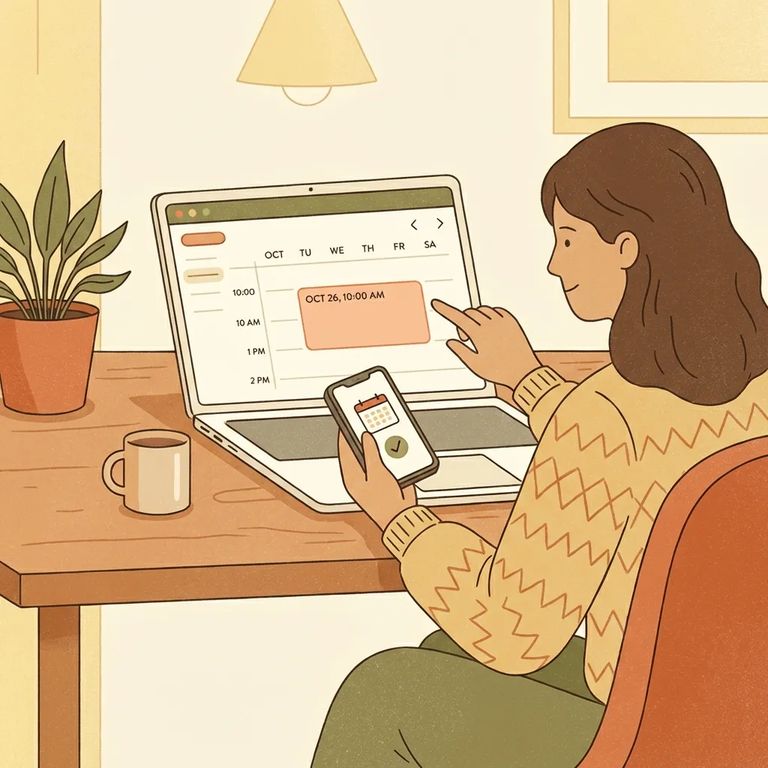
Video visits work by appointment: log in, pick a time slot, and connect at the scheduled time. The specifics - how far ahead you can book, whether you need to be on an approved list, how many people can join, what counts as a no-show - vary by facility. Confirm Paul Rein's requirements before scheduling your first session. If this is your first time, plan for extra setup. Creating your account is just part of it. You also need the right device, a quiet spot, and a stable connection so you're not troubleshooting during the visit. Once you know the rules, scheduling is straightforward: choose the person you're visiting, select an open time, and follow the prompts to confirm (and pay, if required).
- ✓ Session length options and any limits on how often you can visit
- ✓ Whether multiple visitors can join the same video visit (and how many)
- ✓ Whether you need to be on an approved list before you can schedule
- ✓ Any required check-in steps before the visit starts
- ✓ Identification requirements for remote video visits (if any)
- ✓ Rules for late logins, cancellations, no-shows, and refunds
- Log in to your Securus account - Use the app or website on the device you plan to visit from.
- Locate your loved one - Search and select the correct facility/person profile.
- Choose “Video Visit” and pick a slot - Select an available date and time that fits the facility’s schedule.
- Confirm details and complete payment (if required) - Review the visit information carefully before you finalize.
- Test your setup ahead of time - Check camera, microphone, and internet connection well before the visit so you’re not scrambling at the start time.
- Join on time - Log in a few minutes early and follow the on-screen prompts to connect.
Can't line up a live visit every time? Securus may also offer ways to stay in touch between sessions - messages, photos, eCards, or short video clips. These work well when schedules don't align or you want to share a quick update without waiting for the next appointment.
- ✓ Check inside the app for what Paul Rein allows (some features vary by facility)
- ✓ Review photo and message guidelines before you send anything
- ✓ Watch for size/length limits on attachments and video clips
- ✓ If something won’t send, try a smaller file or a different photo format

Remote video is a real time-saver - no driving, no waiting in lines, fewer childcare or work conflicts. The trade-off: video visits and related features can come with fees, and costs vary by location. Before you buy anything, confirm Paul Rein's current fee schedule so you know what you're paying for and what happens if a visit gets canceled or won't connect.
- ✓ How much time and money you’d spend traveling for an in-person visit
- ✓ Whether you have a reliable device (camera/mic) and steady internet
- ✓ Whether video visit times fit your work/school schedule better than on-site hours
- ✓ Whether the fees, cancellation rules, and refund policy are clear before you pay
- Test your camera and microphone - Open the app/site and confirm you’ve allowed camera/mic permissions.
- Check your connection - Use strong Wi‑Fi when you can; if the video stutters, move closer to the router or switch networks.
- Close other apps and downloads - Streaming, updates, and background apps can steal bandwidth and cause freezing.
- Restart if things get weird - A quick device restart fixes a lot of audio/video glitches.
- Log in early for the visit - Give yourself a few minutes to handle prompts or last-second updates without losing visit time.
Note: Only use the official Securus app or website for visits and payments. Avoid third-party “help” services - if something feels off, verify details directly through official channels.
Find an Inmate at Paul Rein Detention Facility, FL
Search for a loved one and send messages and photos in minutes.
