
How to Create a TDCJ Visitation Scheduler Account (step‑by‑step)
Creating your TDCJ Online Visitation Scheduler account is the first step toward scheduling a visit. The process is simple, but small details—like your email format and phone number—can cause hiccups if you're not careful.

You have to create your own TDCJ Online Visitation Scheduler account - TDCJ staff can’t create a visitor account for you. Once your account exists, staff can help with certain updates (like names and addresses), but the initial registration has to be done by the visitor.
Warning: The email you register with is permanent. After the account is created, the account can’t be deleted and the email address on it can’t be changed.
Start by entering a valid email address and submitting it. You'll receive an email with a 7-digit validation code and a link. Use both to return to the scheduler and finish setting up your account.
Tip: Use an email address you’ll keep long-term and can reliably access. You won’t be able to change the email later or delete the account.
Once you click the registration link and enter your validation code, you'll move through setup - including a background questionnaire. Take your time and complete it fully. Leaving it unfinished will block you from moving forward.
- Go to the login screen - start where you normally enter your email and password.
- Enter your email address - use the same email you registered with.
- Click “Forgot Password/Reset Password” - this triggers the reset process.
- Open the reset email and follow the steps - the scheduler will email you instructions to set a new password.
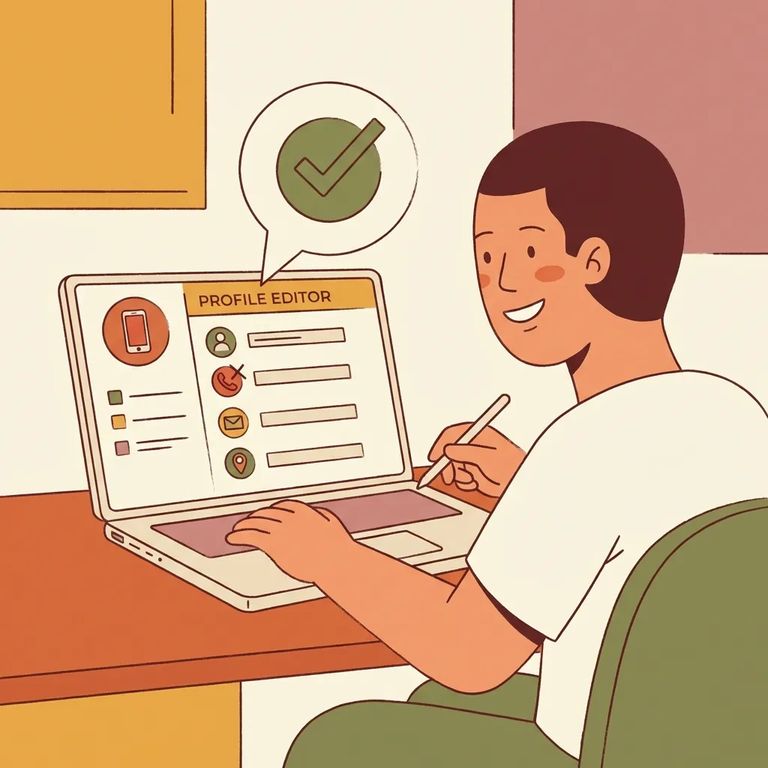
Step3 Profile Phone Address
- ✓ Enter your phone number as XXX XXX XXXX (use spaces only - no dashes).
Reminder: Pick your account email carefully. Once the account is created, you can’t change the email address or delete the account.
Troubleshooting Common Errors
- ✓ You didn’t get the registration email - double-check that you entered the correct email address, then search your inbox and spam/junk folders for the message with the 7-digit validation code.
- ✓ The site won’t accept your phone number - retype it as XXX XXX XXXX with spaces (no dashes).
- ✓ You can’t log in or you’re stuck - use Forgot Password/Reset Password and follow the emailed steps.
- ✓ Registration won’t finish - make sure you completed the background questionnaire as part of setup.
Before reaching out for help, try these quick fixes that solve most account problems. Search for the registration email with your 7-digit validation code (check spam and junk folders too), and double-check that you didn't mistype your email during signup. Locked out or forgot your password? Use the scheduler's Forgot Password/Reset Password option - enter your email, click the link you receive, and follow the reset steps.
If you've already created your account and the issue is getting approved to visit, that's when the unit can help. Relationship verification is handled by TDCJ staff at the inmate's unit, and requests stay pending until staff review them. Stuck because your relationship approval hasn't come through? Contact the unit - but remember, they still can't create a visitor account for you. They can only assist with updates after your account exists.
How approval works: When you submit a relationship request in the scheduler, it’s sent to the inmate’s unit (for example, the Wayne Scott Unit) for verification, and it stays pending until unit staff approve it.
Find an Inmate at Wayne Scott Unit, TX
Search for a loved one and send messages and photos in minutes.
