
Before Your First Video Visit: Equipment Checklist & Internet Visit Tester (St. Joseph County Jail)
A failed connection can cost you time—and sometimes money. Before your first remote video visit, make sure you're using the right app for your device and run the Internet Visit Tester. Catching issues early beats scrambling when your visit is about to start.

The app you need depends on your device. Joining from a desktop or laptop? Download GTL VisBridge. Using a phone or tablet? Stick with GTL VisMobile. VisBridge is desktop-only - it won't work on mobile devices.
Tip: VisBridge for desktop, VisMobile for mobile. Using the wrong app is one of the easiest ways to end up with audio or video problems right when your visit starts.
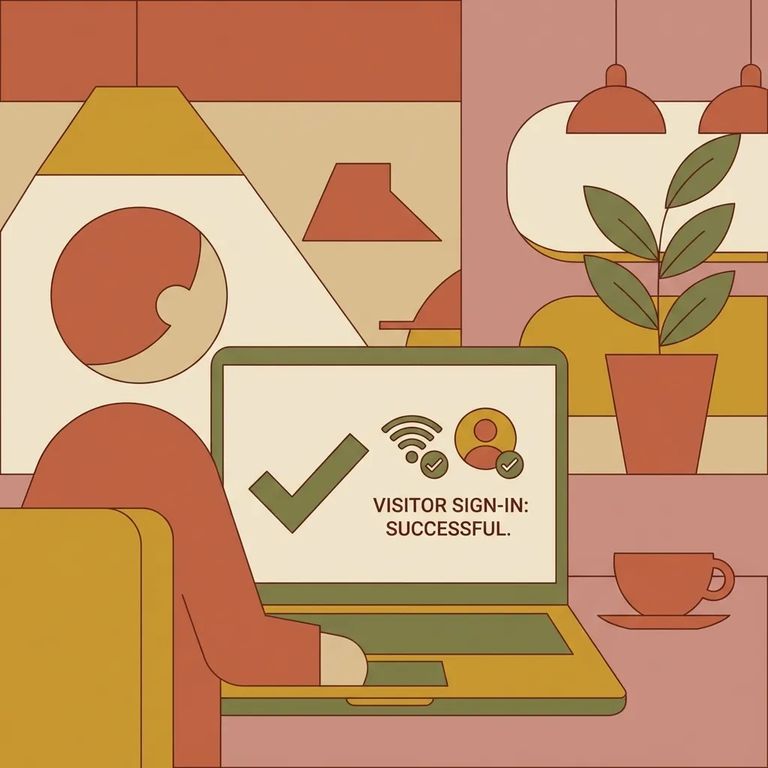
- Log into your visitor account - use the same account you use to schedule and join remote visits.
- Do it at least 10 minutes early - sign in at least 10 minutes before your scheduled visit so you have time to fix anything that fails.
- Open “Internet Visit Tester” from the menu bar - select “Internet Visit Tester,” then follow the prompts to download GTL VisBridge (if needed) and run the checks.
- ✓ Microphone - confirms your mic is detected and working
- ✓ Camera - confirms your camera can be accessed for video
- ✓ Connectivity - checks whether your connection is stable enough for a visit
Timing: Run the Internet Visit Tester at least 10 minutes before your visit. If you test earlier in the day, you’ll have even more time to troubleshoot without eating into your scheduled slot.
Equipment Checklist
- ✓ Use the correct device setup (desktop/laptop vs mobile) before you start
- ✓ Make sure your camera and microphone are connected, turned on, and not being used by another app
- ✓ Allow camera and microphone permissions when prompted
- ✓ Install the required app for your device (desktop/laptop: GTL VisBridge; mobile: GTL VisMobile)
- ✓ Update the app before visit time so you’re not stuck installing during check-in
- ✓ Use a steady internet connection and avoid switching networks right before your visit
- ✓ Log in early and run the Internet Visit Tester from the menu bar
On a desktop or laptop? You'll need GTL VisBridge - that's the required app for video visits. Phone or tablet? Use GTL VisMobile instead. Getting this right upfront makes everything else smoother: permissions, updates, and running the Internet Visit Tester.
- Close and reopen the app/browser - a quick restart can clear a stuck camera or mic connection.
- Check camera/mic permissions - confirm your device is allowing access to your camera and microphone.
- Retry the Internet Visit Tester - log back in and run “Internet Visit Tester” again from the menu bar.
- Switch devices if you can - if desktop/laptop is failing, try joining from a mobile device using GTL VisMobile (or vice versa, depending on what you have available).
If you still can't pass the tester: Don't wait until the last minute. Reach out through the provider's support options in your visitor account, or reschedule your visit so you don't lose your window.
Find an Inmate at South Bend County Jail
Search for a loved one and send messages and photos in minutes.
