
How to Set Up GTL VisBridge for Video Visits at South Bend County Jail
Planning a video visit from a desktop or laptop? You'll need the GTL VisBridge application. Install it ahead of time and run the site's Internet Visit Tester so you're not troubleshooting right before your scheduled visit.

South Bend County Jail video visits on a desktop or laptop require a program called GTL VisBridge. Without it installed beforehand, you'll be scrambling to download software right when you should be logging in. The easiest way to get started: sign in to your visitor account and use the built-in Internet Visit Tester. It walks you through the VisBridge download and install prompts automatically.
Note: VisBridge is only for desktop and laptop visitors. If you're visiting on a phone or tablet, you'll use the GTL VisMobile app instead.
On a desktop or laptop? You need GTL VisBridge. On a phone or tablet? Skip VisBridge entirely. Mobile visitors use the GTL VisMobile app, which is a separate setup.
Android users will see a VisMobile download option on the GTL scheduling page that links to the Google Play store. That's the correct path for mobile visits, and it's completely separate from the VisBridge desktop install.
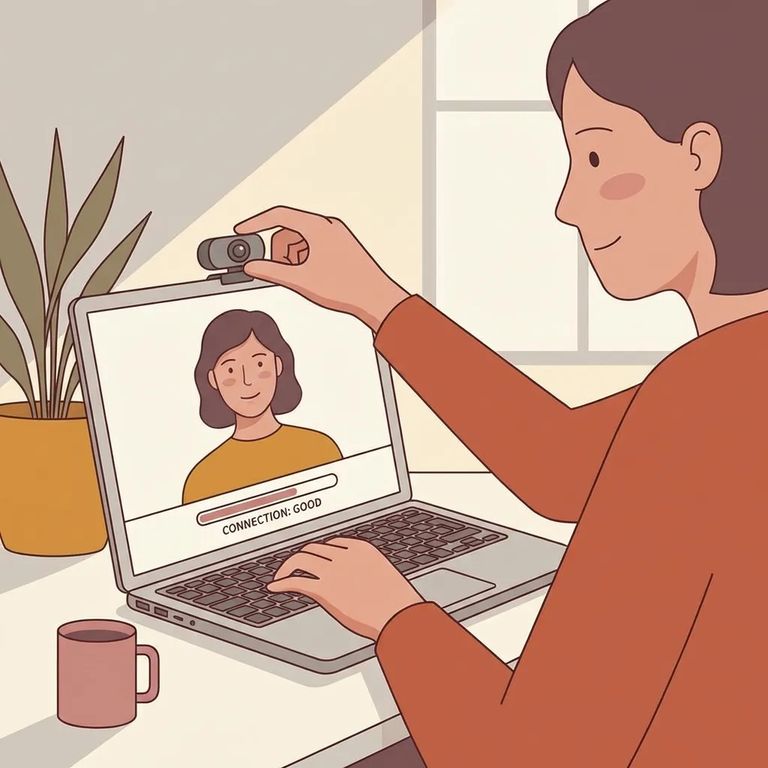
- Sign in to your visitor account - Use the GTL site you normally use to schedule and manage visits.
- Open the “Internet Visit Tester” - Find it on the menu bar after you log in.
- Run the tester at least 10 minutes before your visit - The tester is there to make sure your device and equipment work properly.
- Follow the prompts to download and install GTL VisBridge - The tester will guide you through the download and installation flow for desktop/laptop visits.
- Finish setup before your visit time - Once VisBridge is installed, you’ll be in a better spot to join the visit without last-minute setup delays.
Tip: GTL provides step-by-step VisBridge tutorial videos for both Windows and Mac. If anything in the installer feels unclear, watch the video for your computer before you try again.
Make the Internet Visit Tester part of your routine. GTL recommends logging in at least 10 minutes before your visit, selecting "Internet Visit Tester," and following the prompts. It's also worth running before you schedule any remote (internet) visits, since it checks whether your device and equipment are working properly.
- ✓ Log in to your visitor account
- ✓ Select “Internet Visit Tester” from the menu bar
- ✓ Run it at least 10 minutes before your scheduled visit
- ✓ Follow the prompts (including the VisBridge download/install prompts for desktop or laptop visits)
Want to see the full process before you start? GTL has official VisBridge "how to" videos linked on their page, one for Windows and one for Mac. They walk through the install and setup step by step.
- Run the Internet Visit Tester again - If something didn’t install correctly the first time, the tester is the fastest way to repeat the guided setup.
- Restart your computer and try the tester once more - A reboot can clear issues that prevent a new desktop application from launching correctly.
- Repeat the VisBridge install prompts - Log back in, open “Internet Visit Tester,” and follow the prompts until the download and installation complete.
If you need to review policies while troubleshooting, the GTL site links to its Terms of Use and Privacy Policy, hosted on legal.telmate.com.
Find an Inmate at South Bend County Jail
Search for a loved one and send messages and photos in minutes.
