
How to Set Up Your TDCJ Visitation Account (for Terrell Unit visitors)
Setting up your TDCJ Online Visitation Scheduler account is the first step to visiting someone at the Terrell Unit. Once you've created your account, you can add your loved one and start working toward scheduling a visit.
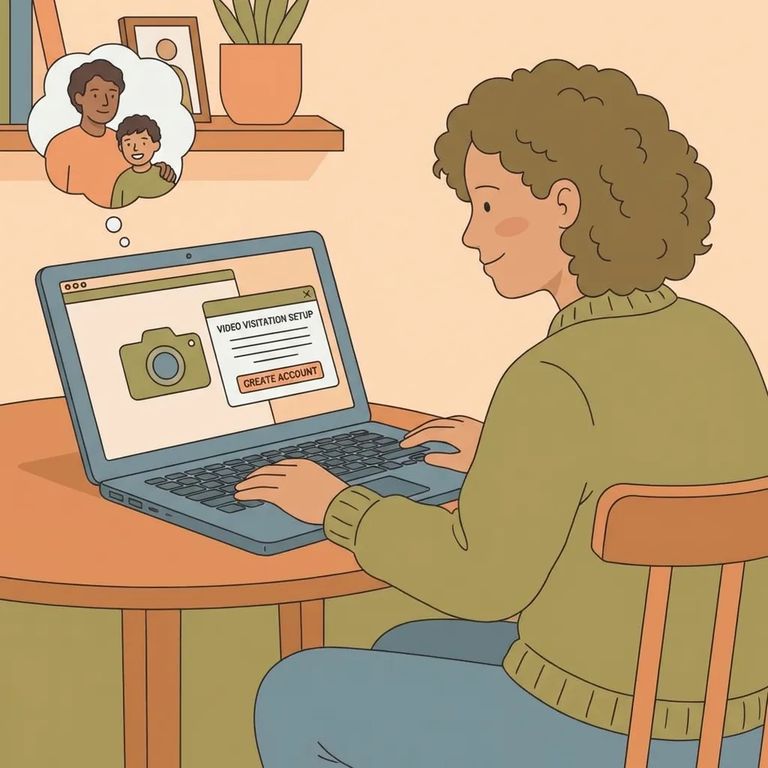
You'll need to create your own TDCJ Online Visitation Scheduler account - staff can't do this part for you. Once your account exists, staff can help with updates, but that initial registration step is yours to complete. The visitation portal is only available to residents of the United States, Canada, and Mexico. If you're outside those countries, the system may block you from registering.
Head to the TDCJ Online Visitation Scheduler login screen and select the option to create an account. Enter a valid email address - this becomes your account anchor, so pick one you check regularly. After submitting, watch for a registration email from TDCJ. You'll need what's inside to finish setting up.
After you submit your email, TDCJ sends a message containing a 7-digit validation code and a link to complete registration. Click that link, or return to the scheduler and follow the prompts to reach the validation step. Enter the 7-digit code exactly as it appears in the email. This code connects your signup to the email address you provided.
Once the code is accepted, you'll create a password and confirm it by typing it again. Follow the on-screen requirements - if something doesn't match what the system expects, it won't let you proceed. After your password is set, the scheduler moves you to the next part of account setup.

Next up: the Background Questionnaire. Every question is required - skip even one, and you won't be able to finish creating your account. Take your time. If the page won't let you continue, double-check that you haven't missed a question or left a required field blank.
- ✓ Answer every question before you try to submit; one blank item can stop the process.
- ✓ Scroll all the way down the page to make sure you didn’t miss a question.
- ✓ If the screen won’t advance, go back through and look for a required field you skipped.
- ✓ Plan a few uninterrupted minutes so you can complete the questionnaire in one sitting.
With your account created, you'll add your loved one to your visitor profile. The TDCJ or SID number must be exactly 8 digits - if it's shorter, missing a digit, or typed wrong, the search won't work. Getting "no results" or stuck? Double-check the number and make sure you've entered all 8 digits.
Once the correct person appears, select your relationship from the dropdown and submit your request. This kicks off the approval process so you can schedule visits. If this is your first time, don't be surprised if you can't schedule right away - your relationship may need approval before visit times become available.

Troubleshooting
- ✓ If you don’t see the email with the 7-digit validation code, check your spam/junk folder and search your inbox for the scheduler message.
- ✓ If you already submitted your email and the system keeps sending you back to login, go back to the email-entry step and try again using the same address.
- ✓ If the system says your email is already in use, you likely have an existing account tied to that address - try logging in instead of creating a new one.
- ✓ If you can’t add your loved one, double-check that the TDCJ/SID number is exactly 8 digits.
- ✓ If your relationship request shows as pending, you’ll need to wait for approval before you can schedule a visit.
Reminder: You must create the visitation scheduler account yourself - TDCJ staff can't do it for you. If you're stuck after creating an account (like waiting on approval), that's when reaching out about your status makes sense.
Find an Inmate at Terrell Unit, TX
Search for a loved one and send messages and photos in minutes.
