
Setting Up Remote Video Visits from Home with NWRCC: Devices, Apps, and Accounts
Remote video visits can be a lifeline — but the setup matters. Here's what you need to get approved, schedule correctly, and avoid last-minute tech surprises when visiting someone at Northwest Regional Corrections Center (NWRCC) from home.
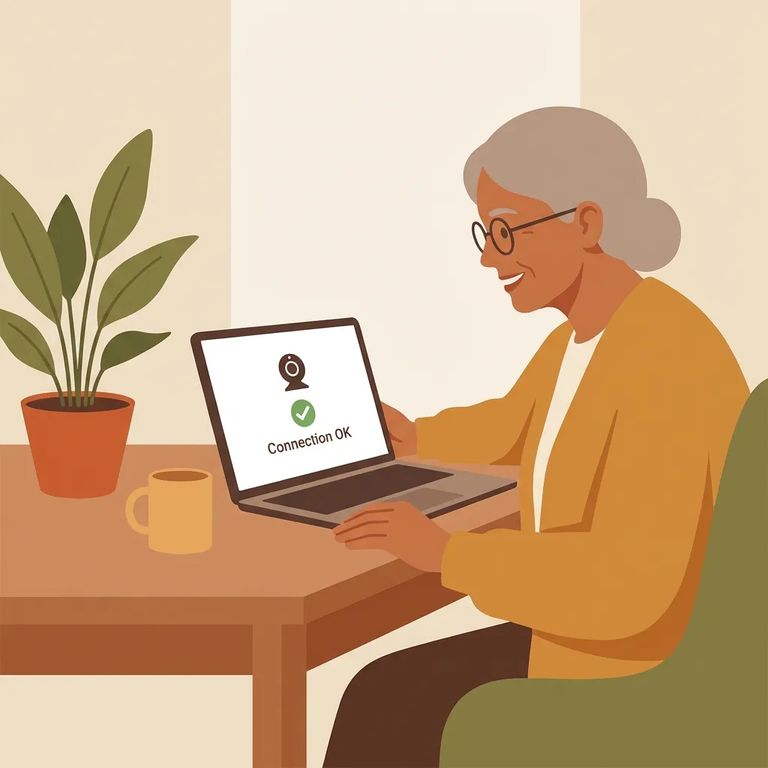
For at-home video visits with NWRCC, you can use an Apple or Android phone, a tablet, or a computer with high-speed internet and a webcam. Using a computer? Make sure your camera and audio are ready before you start. Regardless of which device you choose, you'll use the same visitation system. Create an account through videovisitanywhere.com and get approved before you can schedule and connect.
Visiting from a phone or tablet? Download the free Securus Visitation app from the App Store or Google Play. That's what you'll use to sign in and complete your visit. Prefer a laptop or desktop? Use the Video Visit Anywhere website at videovisitanywhere.com instead. Either way, you'll work through the same account and approval process tied to NWRCC.
Plan ahead: NWRCC requires all visits - including at-home visits - to be scheduled at least 24 hours in advance through videovisitanywhere.com. Same-day visits aren't an option, so you'll need to pick the next available slot.
Before you can schedule, create a visitation account on videovisitanywhere.com and request access to visit Northwest Regional Corrections Center. Jail staff will review your request. Once approved, log back in to schedule visits.
At-home visits can be scheduled any day of the week from 7:00 a.m. to 9:20 p.m. The schedule can shift due to jail lockdown times, though - if you don't see the slot you expected, it may be temporarily unavailable.
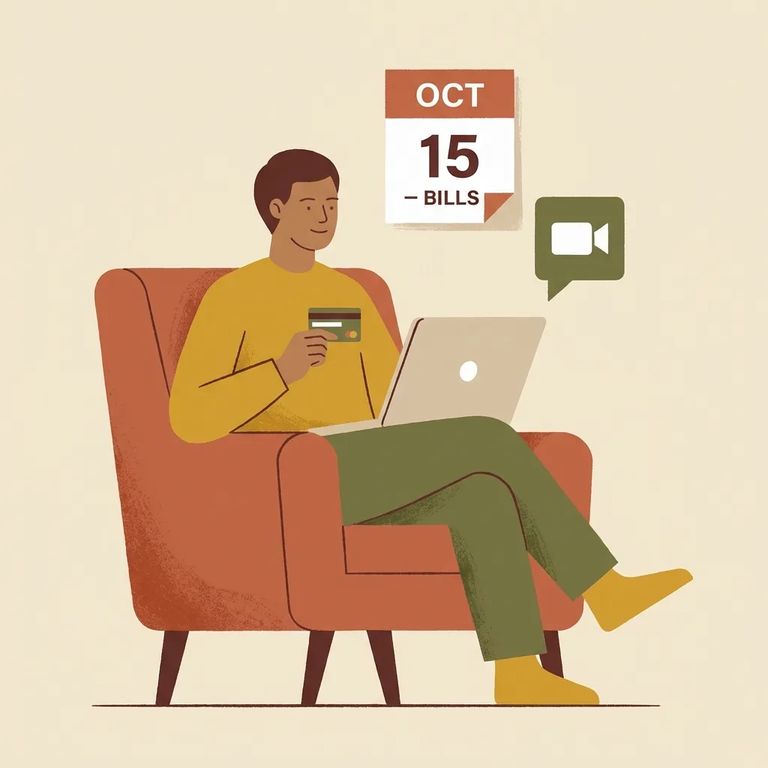
At-home video visits at NWRCC aren't free. The regular rate is $12.95 for a 20-minute visit, though there's an introductory promotional price of $5.95 for 20 minutes. You pay before the visit starts through the visiting platform. Charges are non-refundable, and scheduled times are exact - pick your slot carefully and be ready to connect on time.
Troubleshooting Checklist
- ✓ Use a supported device: Apple/Android phone or tablet, or a computer with a webcam and high-speed internet
- ✓ Install the Securus Visitation app (mobile/tablet) or plan to use videovisitanywhere.com (computer)
- ✓ Log into your visitation account ahead of time so you’re not resetting passwords at the start time
- ✓ Confirm you’ve requested access to Northwest Regional Corrections Center and that your request has been reviewed/approved
- ✓ Test your camera, microphone, and speaker settings (and allow permissions if prompted)
- ✓ Choose a quiet spot with strong Wi‑Fi or a reliable internet connection so the video doesn’t freeze or drop
Find an Inmate at Tri-County Community Corrections, MN
Search for a loved one and send messages and photos in minutes.
