
How to set up your Securus account and AdvanceConnect before CIW moves to Securus
If your loved one is at California Institution for Women (CIW), setting up your Securus account now will save you time and stress when the switch happens. Here's exactly how to get ready for video calls and messaging.
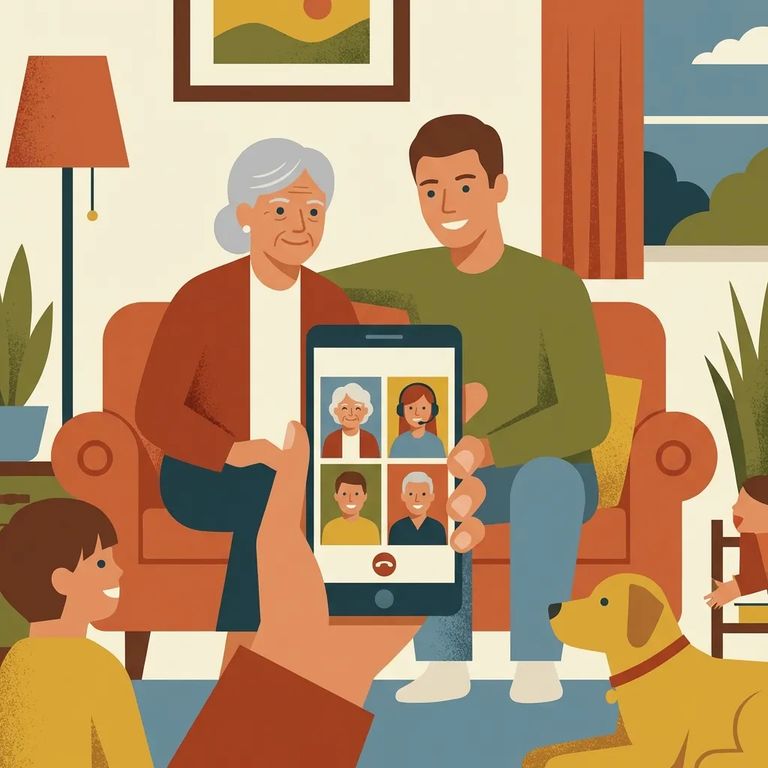
Once CIW transitions, you'll need Securus for tablet-based services instead of ViaPath. Setting up your account ahead of time means you'll be ready the moment video calls and messaging go live. Securus recommends creating your account on their website or mobile app before the switch.
Timing: CIW’s tablet service transition to Securus was scheduled for February 4–6, 2025.
- Choose web or mobile - Securus allows you to open an account either online or in the Securus mobile app.
- Create your Securus login - follow the prompts to set up your account so you can access services like videoconferencing and messaging when they’re available.
- Sign in and confirm you can access your account - once you’re logged in successfully, you’re ready to move on to setting up video features and funding (if you plan to use video calls).
Note: CIW’s telephone service transition (caller ID change) was scheduled for February 2, 2025.
Planning to receive video calls after the transition? You'll use AdvanceConnect inside the app. This is where you set up prepaid video calling and add funds - get it done now so you're not scrambling when your loved one is ready to call.
- ✓ Open your Securus account (web or mobile) so videoconferencing and messaging features can be used when available.
- ✓ In the Securus app, tap AdvanceConnect to set up prepaid video calling.
- ✓ Add funds in AdvanceConnect so you’re ready for prepaid video calls.
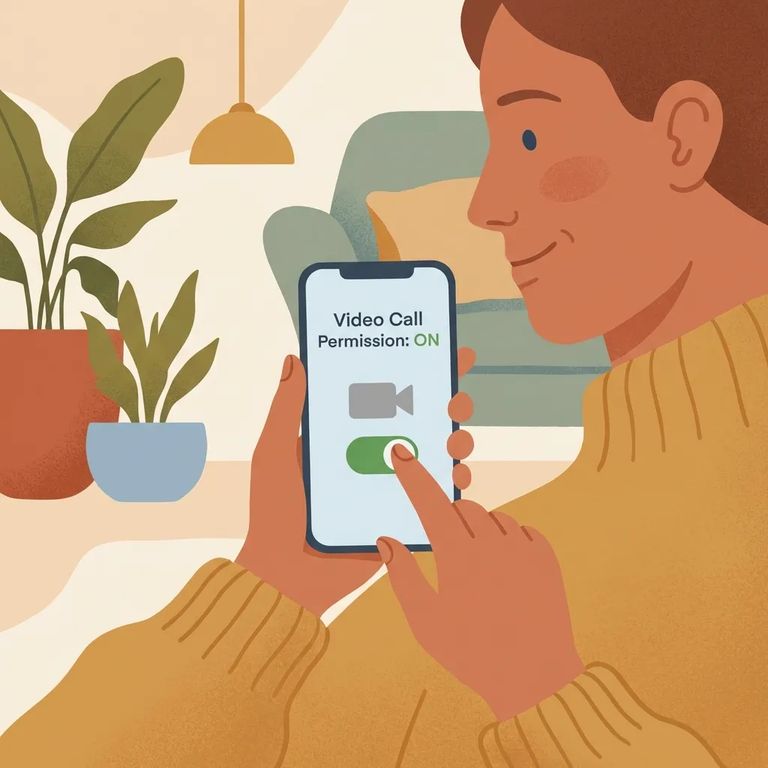
To receive video calls, you need to register for Video Connect in the app. Once you're signed in, go to Video Connect and select "Allow video calls." This step enables video calls on your end - don't skip it.
- Open Video Connect in the Securus app - start the registration process from inside the app.
- Select “Allow video calls” - this is the setting Securus tells families to choose to enable receiving video calls.
- Pick the device you’ll actually use - Securus Video Connect can be used through the free Securus app, or on a computer or tablet.
- Do a quick test run on your device - make sure you can sign in smoothly and that your setup is ready before you need it.
Tip: Try to get your account, AdvanceConnect, and Video Connect set up before CIW’s scheduled transition window (February 4–6, 2025) so you have time to fix any login or setup issues.
Stuck? Check Securus's official help resources for account setup, AdvanceConnect funding, and Video Connect registration. Your Securus account unlocks access to video calls and messaging, so make sure you can sign in first. Then circle back to Video Connect registration inside the app.
Note: CDCR’s CIW rollout schedule lists the tablet service transition window as February 4–6, 2025 - check for any implementation updates around that timeframe.
Find an Inmate at California Institution for Women
Search for a loved one and send messages and photos in minutes.
