
Setting Up Your Securus Account Before Your Loved One Gets Their New Tablet
CCWF's tablet service was scheduled to transition from ViaPath to Securus on February 10–13. Once that rollout happens, Securus becomes the system families need going forward. If you wait until your loved one has the new tablet in hand, you could end up scrambling - missing the first video calls or messages while you're still trying to register.
Note: After CCWF transitions, you'll need Securus (not ViaPath) for tablet-based communication. Setting up your account ahead of time means you won't miss calls during the changeover.
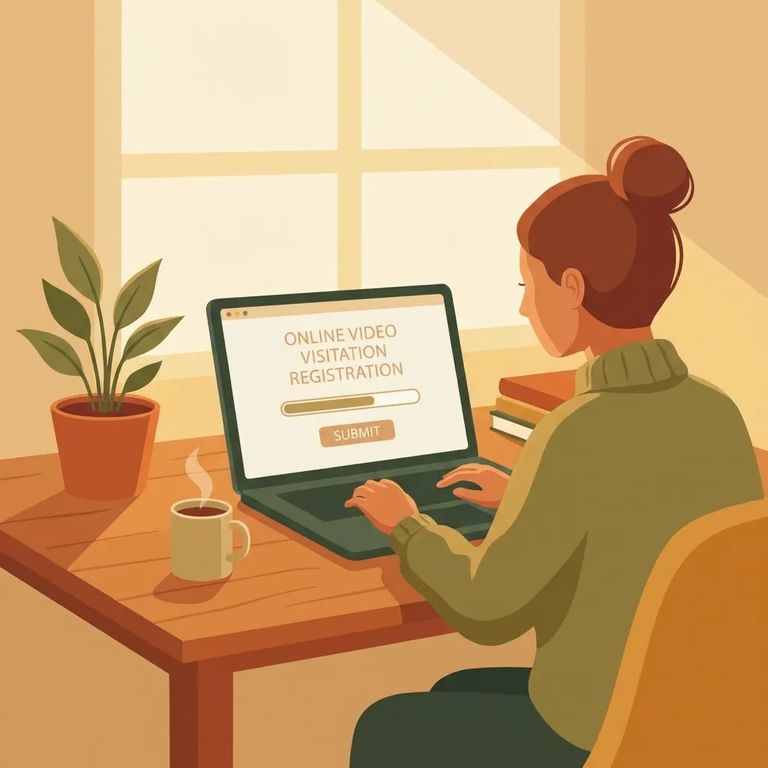
- Open Securus online or download the Securus mobile app - Securus directs families to start by creating an account either on their website or in the app.
- Create your Securus account - follow the prompts to register so you’re ready for services as they come online.
- Go to “Video Connect” in the app - this is where the video calling feature is managed.
- Register for Video Connect and allow video calls - select “Permitir videollamadas” (Allow videoconnect) so your account is enabled to receive video calls.
Tip: Don’t assume Video Connect is “on” by default - open the Video Connect area and make sure you’ve registered by selecting “Permitir videollamadas” (Allow videoconnect).
Planning to receive video calls? Use AdvanceConnect in the app to set up prepaid video calling and add funds. Video sessions require money in the right place, so getting funded early prevents a frustrating situation where a call can't go through when your loved one finally tries to connect.
- ✓ Set up AdvanceConnect in the Securus app for prepaid video calls
- ✓ Add your payment method
- ✓ Deposit funds to cover upcoming video sessions
- ✓ Check your balance before a scheduled call so you’re not caught off guard
Securus Video Connect is fully web-based - you can schedule and join video sessions from anywhere with internet access. Use the free Securus app, or join from a computer or tablet. You're not locked into one device, so pick whatever works best on the day of your call.
Tip: Test your device (app or browser) and internet connection before the first session. You don't want to troubleshoot when the call window opens.
Hit a problem with your login, registration, or the app? Start with Securus support - those are account-side issues. If the problem seems specific to CCWF after the transition (something that depends on the facility's setup), call Central California Women's Facility at (559) 665-5531.
Find an Inmate at Central CA Womens Facility
Search for a loved one and send messages and photos in minutes.
