
How to Set Up Video Visits at Maryland Reception, Diagnostic and Classification Center (MRDCC)
Video visits can feel overwhelming the first time, but once you know the steps, it's straightforward. This guide walks you through completing the required DPSCS form, meeting eligibility and ID requirements, setting up Microsoft Teams, and avoiding mistakes that can cut your visit short.

This guide is for friends and family setting up a virtual (video) social visit with someone at MRDCC. Here's what matters most: filling out and returning the DPSCS video visitation form correctly, meeting age and photo ID requirements, getting Microsoft Teams ready, and following the call rules so your visit doesn't get cut off.
First, complete the DPSCS Video Visitation Acknowledgement Form and return it to the institution's administration. Don't send the signed form to the incarcerated person - that slows things down. For MRDCC, mail it to: 550 East Madison Street, Baltimore, MD 21202.
Reminder: Return the signed Video Visitation Acknowledgement Form to the institution’s administration - not to the incarcerated person.
Anyone 16 or older needs to do two things before participating: sign and date the Video Visitation Acknowledgement Form, and show a valid photo ID during the video visit. Make sure every visitor 16+ meets both requirements - missing one can delay or cancel the visit.
Step3 Eligibility
- ✓ Make sure you do not have an open arrest warrant.
- ✓ Make sure you are not a fugitive from any federal, state, or local criminal justice agency.
If your situation is complicated, get clarity before trying to schedule. Video visitation can be denied for reasons beyond the basics, and sorting it out ahead of time is much less stressful than scrambling right before your visit.
Maryland DPSCS uses Microsoft Teams for virtual social visits (it replaced Skype). You'll need a Teams account to participate. Virtual visitation is free for eligible incarcerated individuals and authorized visitors. Follow the DPSCS virtual visitation instructions to download Teams and set up your account.
Tip: Set up your Microsoft Teams account early and do a quick test call on the same device you’ll use for the visit.
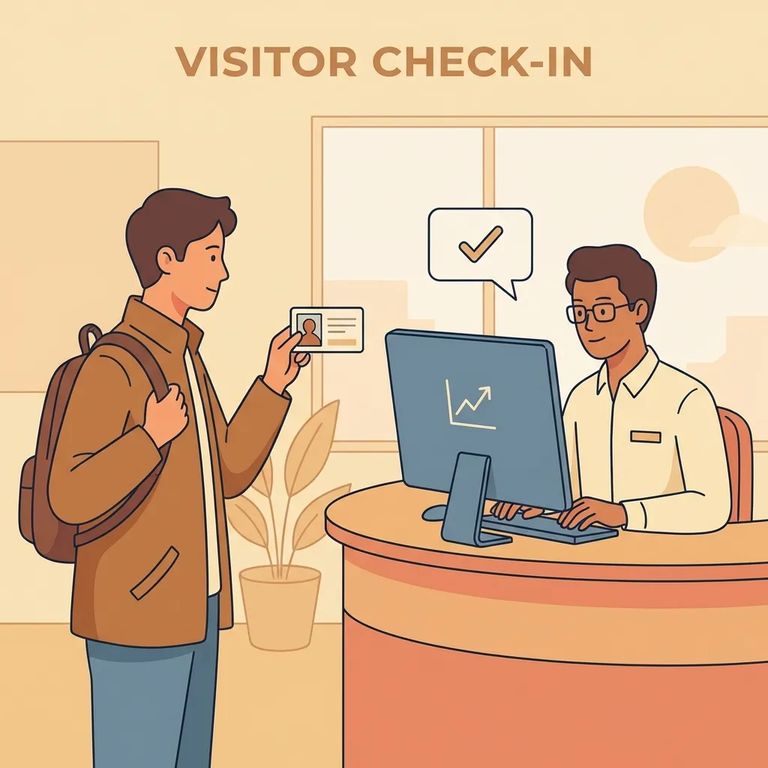
Step5 on Day
- ✓ If you’re 16 or older, have your valid photo ID ready at the time of the video visit.
During the visit, keep it simple and follow the rules you agreed to. Three-way calling is prohibited. You can't take snapshots or screen captures of the incarcerated person or the screen. When you signed the Video Visitation Acknowledgement, you agreed that breaking these rules can end the visit immediately and lead to suspended visitation privileges under COMAR 12.02.16.08.
Warning: If you add unauthorized third parties or try to record/capture the screen, the visit can end immediately - and you may lose visitation privileges.
Checklist Printable
- ✓ Return the completed DPSCS Video Visitation Acknowledgement Form to MRDCC administration (don’t send it to the incarcerated person).
- ✓ If you’re 16 or older, sign and date the acknowledgement form.
- ✓ If you’re 16 or older, be ready to show a valid photo ID at the time of the visit.
- ✓ Create a Microsoft Teams account and test that it works on your device.
- ✓ Make sure you do not have an open arrest warrant before you try to schedule.
The DPSCS video visitation materials don't include an MRDCC-specific phone number or email for scheduling help. If you're stuck - whether it's where to send something, how visits are scheduled, or what time slots are available - check MRDCC's official DPSCS webpage for current instructions, or ask your loved one to confirm the process with their housing unit.
Find an Inmate at MD Reception Diag and Classification
Search for a loved one and send messages and photos in minutes.
