
Setting Up Securus Video Connect for Remote Calls with a Loved One at SATF-Corcoran
If your loved one is at SATF-Corcoran, Securus is how you'll set up remote video calls. Here's how to create your account, enable Video Connect, and add funds so you're ready when a session becomes available.
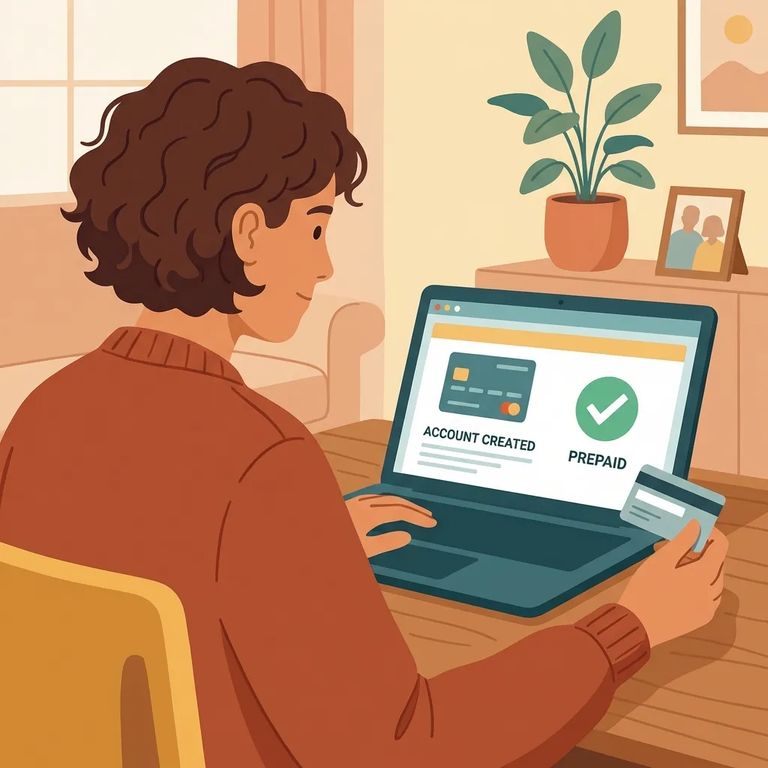
Securus is the communications provider for the California Department of Corrections and Rehabilitation (CDCR), which includes SATF-Corcoran. Video Connect is their web-based video system - it lets you schedule and join video sessions with an incarcerated person from anywhere with internet access. You can use the Securus app, a computer, or a tablet.
Video calls aren't your only option. Depending on what's available for your loved one, you may also be able to send messages, photos, eCards, and short video clips through Securus. For details on CDCR tablet rollout timing and costs, Securus directs families to the CDCR tablets page.
- Start on Securus (web or app) - Create your account either on the Securus website or in the Securus mobile app.
- Set up your account now (before you need it) - CDCR families are encouraged to open a Securus account ahead of time so you’re ready when video calling is available for your loved one at SATF‑Corcoran.
- Open the Securus app and find Video Connect - Look for the Video Connect option in the app.
- Register and turn on video permissions - Complete registration by selecting “Allow video calls.” This is the setting that enables you to receive video calls.
Planning to receive prepaid video calls with your loved one at SATF-Corcoran? Set up funding through AdvanceConnect in the Securus app. Tap AdvanceConnect to create the account and add funds - this way you won't be scrambling when a video session gets scheduled.
Once your account is ready, Video Connect lets you schedule and join sessions from anywhere with internet access - through the Securus app, a computer, or a tablet. You may also have other ways to stay in touch through Securus, like sending messages, photos, eCards, and short video clips. These can be a good backup when a live call isn't possible.
Note: For CDCR tablet rollout schedules and pricing for tablet-based video communications, Securus directs families to the CDCR tablets page.

Practical Tips Checklist
- ✓ Create your Securus account (web or mobile app) so you’re ready for video calling at SATF‑Corcoran.
- ✓ In the Securus app, register for Video Connect and select “Allow video calls.”
- ✓ Open AdvanceConnect in the app and add funds if you plan to receive prepaid video calls.
- ✓ Test your setup before call time (log in, check your device camera/mic, and confirm you can access Video Connect).
- ✓ Confirm you’re set up for CDCR/SATF‑Corcoran services through Securus before you rely on a scheduled video session.
For anything time-sensitive - like when certain communication features go live - check official updates from Securus and CDCR. Those are the best sources for current information on CDCR facilities like SATF-Corcoran.
Find an Inmate at SATF-Corcoran
Search for a loved one and send messages and photos in minutes.
