
Video Visit Checklist and Privacy Guide — SCI Albion (PA)
PA DOC video visits go smoothly when you have the right link, the right login, and a quiet, private space. This checklist helps you connect on time—and avoid privacy mistakes that can cause problems.
Everything starts in the PA DOC Inmate Visitation System (IVS). You'll schedule your SCI Albion video visit there, and it's also where you'll find your visit details. After scheduling, you should receive an automated confirmation email. Between the IVS
- ✓ Log in to the PA DOC Inmate Visitation System (IVS) and check your upcoming visits for the Video Call URL
- ✓ Check the email account tied to your IVS account for the automated confirmation email
- ✓ In that confirmation email, find the meeting ID and password (keep them handy in case you need to enter them in Zoom)
Device Checklist
- ✓ Use a device that can run Zoom (phone, tablet, or computer)
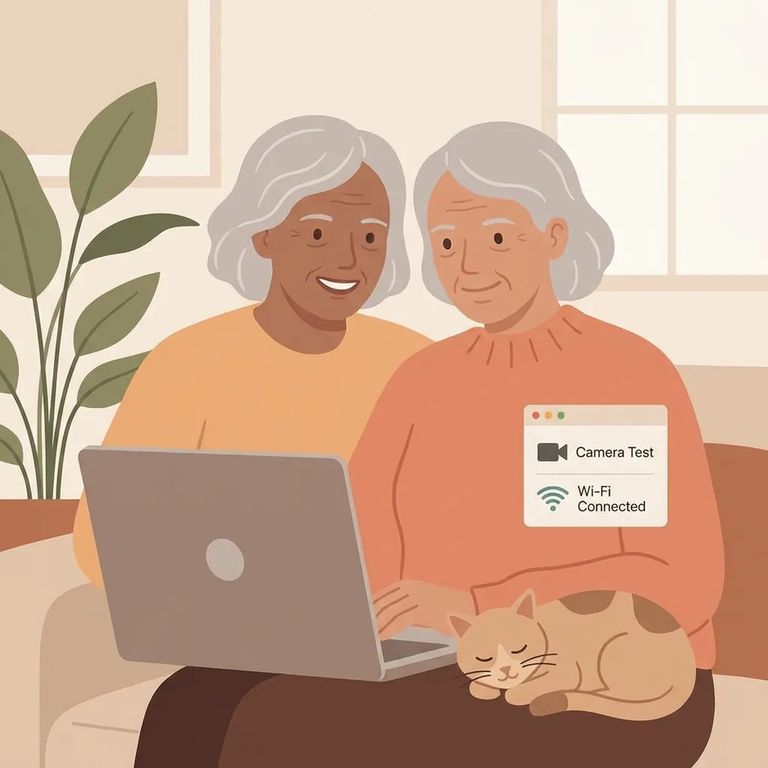
- ✓ Make sure you have both a working camera and microphone so you can see and be seen, and hear and be heard
- ✓ If your device has a microphone but no camera, you may be able to see and speak, but the incarcerated person won’t see you
- ✓ If your device has a camera but no microphone, the incarcerated person may see you and you may hear them, but they won’t hear you
Scrambling for a link at the last minute? That usually traces back to scheduling. SCI Albion contact and video visits must be scheduled in advance through the PA DOC Inmate Visitation System (IVS). The best device prep you can do is make sure you're signed into the correct IVS account and that your visit actually appears on your schedule.
Plan for a 45-minute visit. Join no more than 3 to 5 minutes before your scheduled start time - logging in too early can block your connection. When the visit ends, hang up right away. Visits are scheduled back-to-back, and staying connected past your time can interfere with the next slot.
Recorded by PA DOC: Video visits are monitored and recorded, except visits with legal counsel/attorneys (those are not recorded).
Do not record or share: Recording, uploading, sharing, or otherwise distributing a video visit yourself is not authorized.
Treat your SCI Albion video visit like a monitored visit in a secure setting - because that's exactly what it is. Since visits run under PA DOC rules, keep your conversation and surroundings appropriate for a recorded call. Want privacy on your end? Take the call in a quiet room, keep others out of frame, and don't do anything that looks like you're capturing or redistributing the visit.
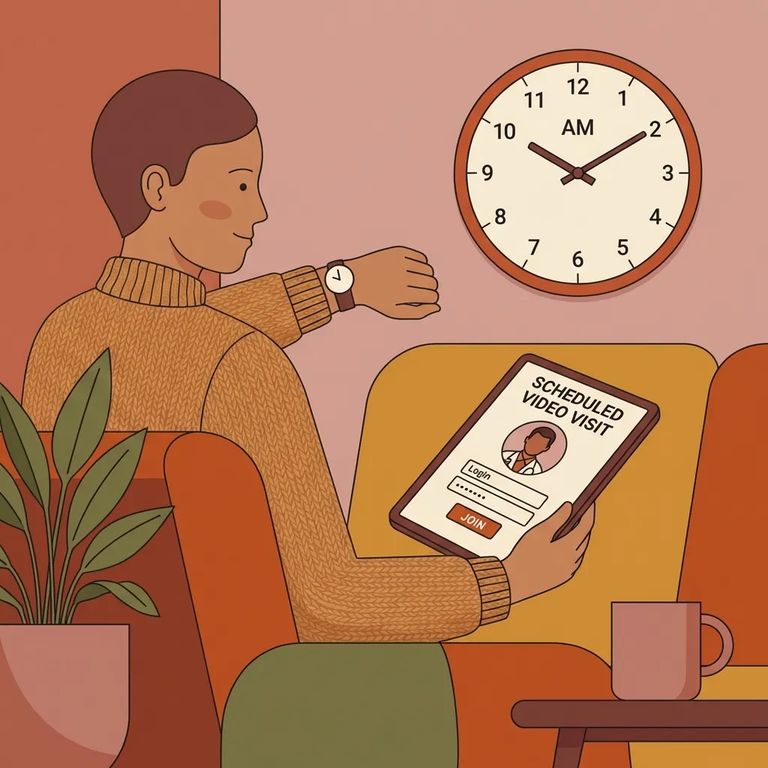
- Open your Video Call URL - click the link from IVS (upcoming visits) or from your confirmation email.
- Join through Zoom if prompted - if Zoom asks, enter the meeting ID and password.
- Time your entry - join no more than 3 to 5 minutes before the scheduled start time.
- Finish cleanly - hang up as soon as the visit is concluded.
Can't find the link at the last minute? Don't guess. Go back to IVS and check your upcoming visits, then look for the automated confirmation email - it has the same Video Call URL along with the meeting ID and password.

Troubleshooting
- ✓ Re-open the automated confirmation email and try the Video Call URL again (or use the meeting ID/password in Zoom)
- ✓ Log out and back into IVS and check upcoming visits to confirm you’re looking at the right scheduled visit
- ✓ Make sure you’re using the same email/account you used for IVS when the visit was scheduled
- ✓ Switch to a different device with a working camera and microphone if your current setup can’t send audio or video
No link usually means no scheduled visit. SCI Albion video visits must be scheduled in advance through IVS. Confirm the visit actually appears in your IVS account - if it's not there, you won't get a Video Call URL or confirmation email.
Find an Inmate at SCI Albion
Search for a loved one and send messages and photos in minutes.
